Support - SoundCenter Surround
- SoundCenter Surround (10131)
- SoundCenter Surround +WiSA-HT (10132)
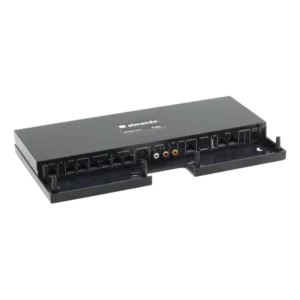

Installation instructions
Lorem ipsum dolor sit amet, consectetur adipisicing elit, sed doeiusmod tempor incididunt ut labore et dolore magna aliqua.
Quick Guide Network
Lorem ipsum dolor sit amet, consectetur adipisicing elit, sed doeiusmod tempor incididunt ut labore et dolore magna aliqua.
Quick Guide HDMI ARC
Lorem ipsum dolor sit amet, consectetur adipisicing elit, sed doeiusmod tempor incididunt ut labore et dolore magna aliqua.
Manual software update in case of network problem
Lorem ipsum dolor sit amet, consectetur adipisicing elit, sed doeiusmod tempor incididunt ut labore et dolore magna aliqua.
The SoundCenter software is designed for all soundbars with HDMI ARC. The following models have been successfully tested for compatibility so far:
- Bang & Olufsen BeoSound Stage
- Sonos ARC
- LG Soundbar
- Loewe klang bar3 mr
- Loewe klang bar5 mr
Yes, this is possible with the following TV sets:
- BeoVision Countour
- LG OLED C-Serie
- LG OLED G-Serie
Currently, the SoundCenter can control all BeoVision 7 motorized stands – including 2-axis models (rotation and tilt).
The motor interface and software are designed to be flexible, so that with appropriate adapter cables it will also be possible to control other stands (BeoVision 10, etc.).
The BeoVision Contour is a combination of an LG OLED television and a BeoSound Stage.
After the TV is set up and connected to the network, the SoundCenter can be placed between the two components. This allows additional speakers (front, surround, and subwoofer) to be connected to the system. The center channel (the speech component of the broadcast) will continue to be sent to the BeoSound Stage.
This means that a full surround sound setup can easily be achieved with the BeoVision Contour 🙂
If the almando device is connected to the network via Wi-Fi, then you must of course enter the new WiFi access data into the device.
If you press and hold the reset button on the device, the LED on the front will blink in a specific color to indicate the network status:
- A flashing green light means the device is connected to the network via a LAN cable.
- A red flashing light means the device is wirelessly connected to the network via WiFi, but the reception is poor or the access data is incorrect.
- A flashing white light means the device is wirelessly connected to the network via WiFi and the access data is correct.
To enter the new Wi-Fi access data, briefly connect the Almando device to your router using an Ethernet cable. Apart from the power cable and the Ethernet cable, nothing else needs to be connected to the Almando device. You can then enter the data using the Almando PLAY app under Settings > Network.
 Liesl-Karlstadt-Str. 7